
This guide is for students at R(D)SVS.
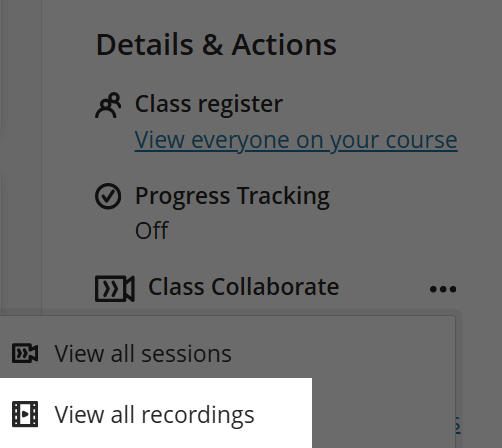
In a Learn course, find Class Collaborate in the Details & Actions sidebar. On mobile or tablet this will be above your course content.
Click the ellipsis (…) menu icon beside it.

Click View all recordings.
If you don’t see the recording of the session you want in the default ‘Recent Recordings’ list, you can change the Filter by menu to Recordings in a Range and set the dates you want to see.
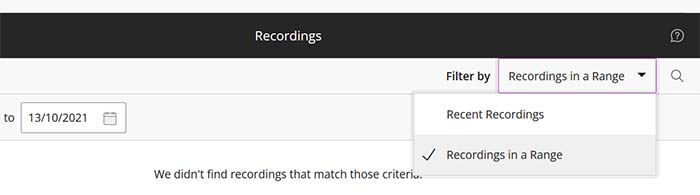
You can also use the Search (magnifying glass icon) if you know the title of the session or recording.
Click on a recording title, and select Watch now.