
This guide is for staff and students at R(D)SVS.
You can add images to discussion board posts, and other areas of Learn, using the steps below.
Uploading an image
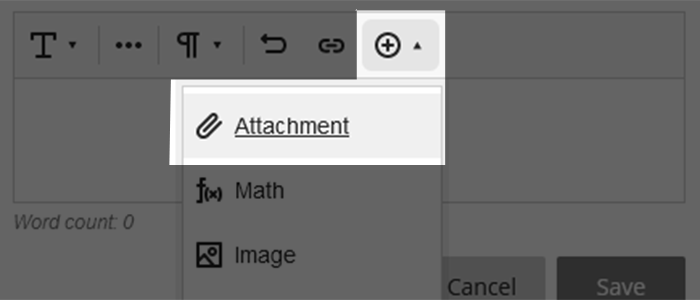
If you see a compressed toolbar view (mobile or tablet), click the plus icon.
Select Attachment from the dropdown menu.
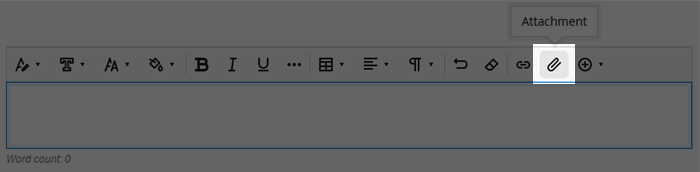
On desktop (full toolbar view) , select Attachment directly.
This will open your device’s file browser. Navigate to your image and add it to the page.
- You can also drag and drop files onto the Message box to automatically upload.
You can then choose a file name and description for the image.
Resizing the image and adding a text description
To resize, select the image then drag to the desired size within the message box.
After selecting an image you can select the pencil icon to edit its information.
