
Screenshots on this website are 700px wide and look something like this:
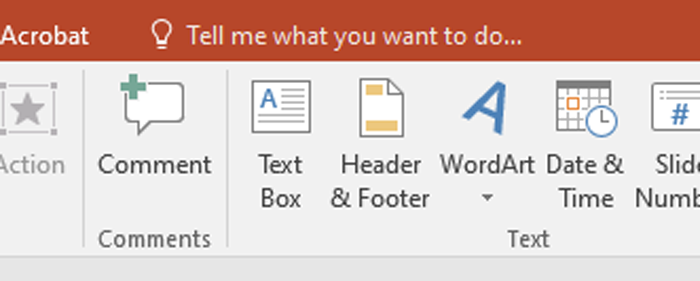
- It’s best to use an image that is wider than it is tall (ratio of 2:1 or more).
- Crop images to focus only the essential parts, but make sure you retain context.
A screenshot with a highlighted area looks like this:
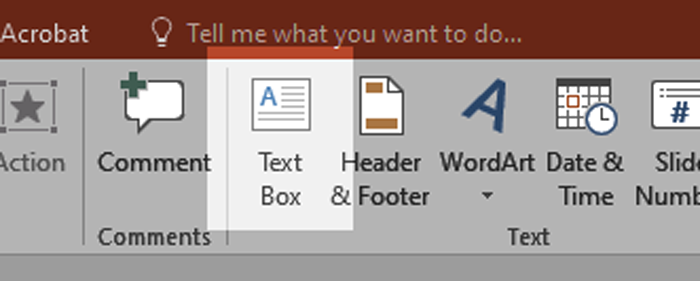
How to create a screenshot with a highlighted area
Photoshop
- Open the screenshot in Photoshop.
- Select the area you want to highlight using the Rectangular Marquee tool.
- You can also use the Polygonal Lasso tool (click and hold on Lasso) to make complex shapes.
- Select > Inverse
- Image > Adjustments > Levels…
- Change Output Levels maximum value from 255 to 100
To export from Photoshop, use File > Export > Export as…
Preview (Mac)
- Open the screenshot in Preview.
- Highlight a section using Tools > Annotate > Mask.
- Resize the image to 700px wide using Tools > Adjust size.
To export from Preview, use File > Export…