
This guide is for students at R(D)SVS.
The following steps show you how to download an attachment from a video embedded on a Learn page.
On the Learn page, click ‘play‘ on the video and then ‘pause‘.
The video player bar should appear at the bottom of the video.
Click the University crest at the right-hand end of the player bar:

This will open the video within Media Hopper Create.
Look underneath the video for the Attachments section:
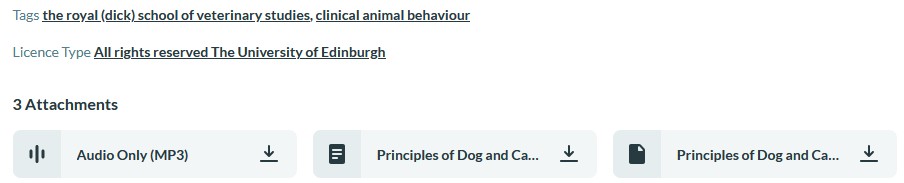
If available, you should see an ‘Audio Only (MP3)’ attachment, with a download icon next to it.