
You can quickly create rules to filter mail from specific addresses and/or with specific subject lines.
This can be useful in categorising automated emails from Learn and other platforms.
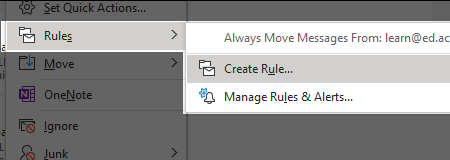
Right click on an email in your inbox that you wish to make a filter rule for. Select Rules then Create Rule.
In the setup window, check the From email address box.
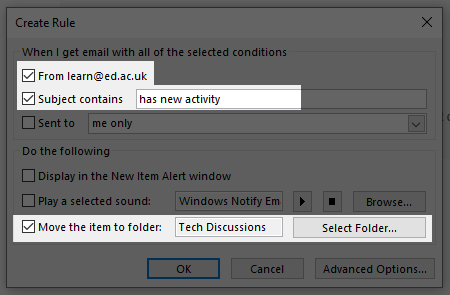
You can optionally add a Subject contains filter. You can determine this by looking at multiple emails of the same type. In the case of discussion board notifications, the email subject is always:
Discussion Title has new activity
You can add the unchanging part of the subject line as a filter condition.
Use the Move the item to folder option to send the emails to a specific folder. You can select an existing folder or create a new one in your inbox.