
This is for R(D)SVS staff with Instructor access to a Learn course
You can view a Collaborate session attendance report in the following way:
Go to the relevant course in Learn.
From the righthand navigation, go to Class Collaborate and select the ellipsis (…) menu . Select View room report from the list.

Select the appropriate Session. You can filter by upcoming, previous, or within a specific date range.
Click the ellipsis icon and select View reports.
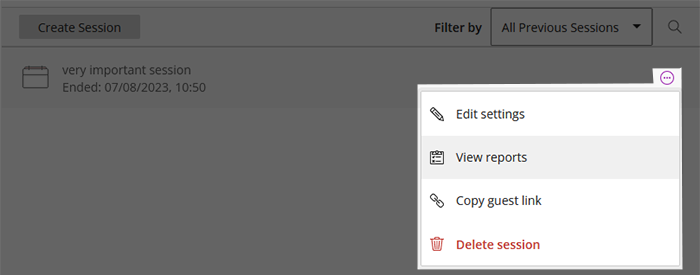
Find the session time period you need the report for. Again, you can view recent reports or search a date range.
Click View report to view a session attendance report.

The report screen will show the list of attendees and session activity details.
Downloading Reports
Under Export Report, you will see two options:
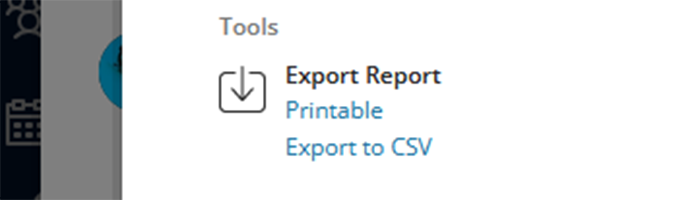
- Printable – view a printable list of attendees with detailed information about session activity.
- To print, first click to view the list in your browser. Next open your browser menu and select the print option.
- Export to CSV – download a CSV file that contains the same information. CSV files can be opened with spreadsheet software such as Excel.
Warning: if anyone has had to reconnect or use a guest link, the information in the report may need checked for duplicates/accuracy.