
This information relates to an old version of Learn. See the following link for an updated guide:
Export your video project
If you’ve been editing your video, you will need to export it out of your editing software before you can submit it to us. Typically you will be exporting to the file format .mp4
How to export from Shotcut, iMovie, or PowerPoint
Shotcut: Go to File > Export Video… (Use the default settings)
iMovie: Go to File > Share > File… (Use the default settings)
PowerPoint: Go to File > Export > Create a Video (set Quality to ‘Internet Quality’. If your PowerPoint contains narration, also select ‘Use Recorded Timings and Narrations’)
Your video should be exported as an .mp4 file. This can then be uploaded to Learn.
Submitting your video to Learn
Click the submission link.

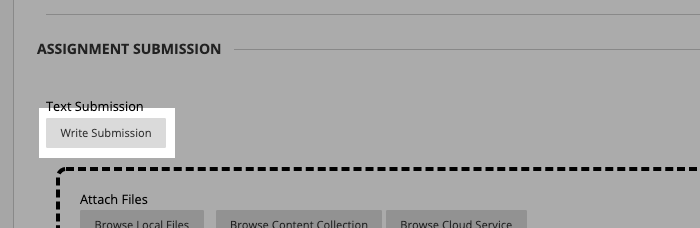
On the Upload Assignment page, click Write Submission:
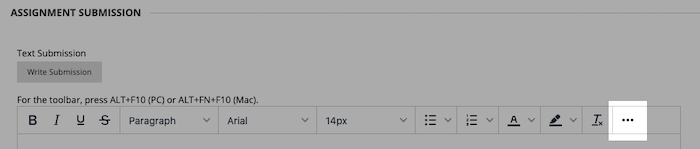
You may need to expand the toolbar. To do this, click the button with 3 dots:
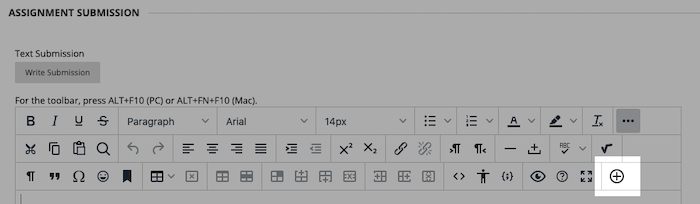
Click the plus icon:
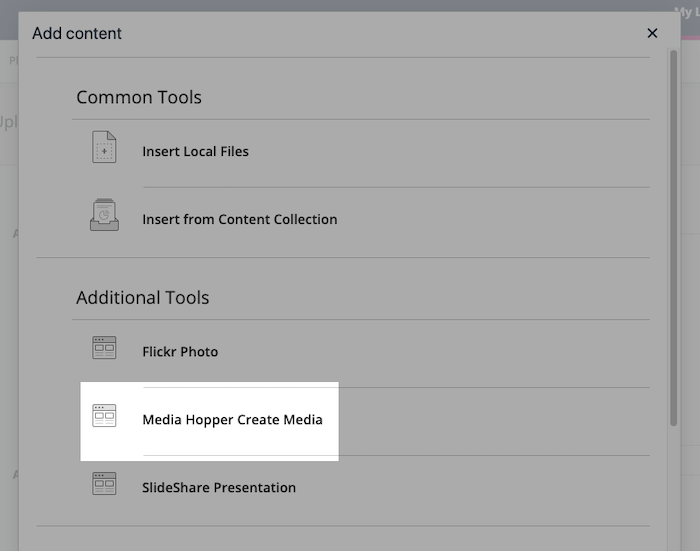
In the window that pops up, click Media Hopper Create Media – not the ‘(Ultra)’ one.
Click Add New > Media Upload

Upload your video file.
Enter a name for the video and click Save and Embed:

When you are asked “Would you like to submit media as assignment?”, click Yes, please.

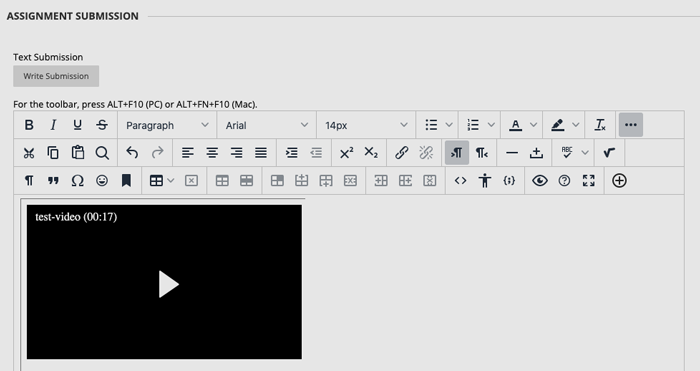
Your video should now be visible in the assignment submission text area, as shown below:
Optional: If you are submitting any other files as part of the assignment, add these via Attach files > Browse My Computer

Click Submit

You should see a “Success!” message confirming that your submission has been received. You should also receive a confirmation message sent to your University email account.
Support
You can find more information about Media Hopper Create from Information Services at the University of Edinburgh.
Media Hopper Create: get help using this service
If you have any problems uploading your video assignment, please contact the Course Secretary.