
This post is for staff at R(D)SVS.
Live sessions typically use a combination of voice, webcam video, slides, screen-sharing and text chat. However, in some instances you may want to run a live session using text chat only. In this post, we’ll look at some of the available tools for running this type of session, and go through some of the positives and negatives of each.
As always, consider your pedagogical aims and any potential accessibility issues before settling on a tool or a mode of delivery.
University guidance on recommended tools
- The University’s Virtual Classroom Policy (Opens in new tab)
- Information Services advice on supported tools for online and digital events (Opens in new tab)
If you’re using a tool that isn’t supported by the University, you should check that the appropriate impact assessments have been carried out:
Collaborate
Positives
- University staff and students will be familiar with Collaborate, as it’s the default tool for live online teaching.
- Collaborate is fully supported by Information Services, which means you can get technical support if anything goes wrong.
- Collaborate is integrated with University systems. You set up sessions via Learn or MyEd, and log in to the system with your University login.
- You can download a transcript of the text chat. You must record the session for this to be available.
Negatives
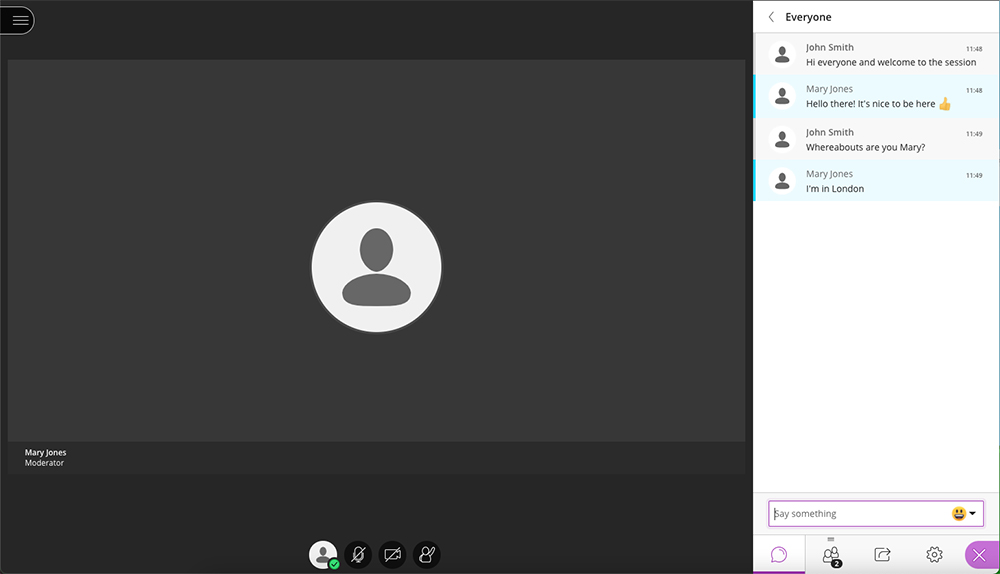
- The Collaborate interface is set up for webcams and slides. Text chat appears as a thin column on the right of the screen, which isn’t ideal if your session is text only.
Introduction to Blackboard Collaborate
How to download chat transcripts from Collaborate (Opens in new tab)
Skype
Positives
- Participants join via a link, which can be emailed out or posted online.
- There’s no need for participants to have a Skype account.
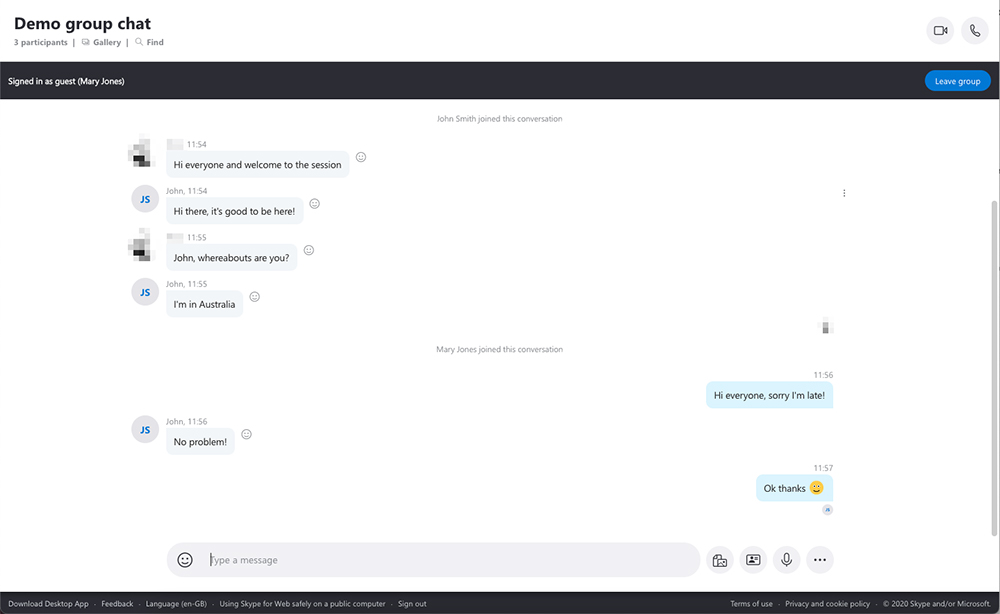
- The interface accommodates text-only chat well.
Negatives
- Skype is not integrated with University systems, and you’ll need your own Skype account to create group chat sessions.
- Skype is not supported by Information Services.
- Downloading a transcript of the text chat involves a laborious process in which you manually tick a box next to each post that you want included in the transcript.
How do I create a group chat in Skype on desktop? (Opens in new tab)
Try Skype without a Skype account (Opens in new tab)
Microsoft Teams
Positives
- Teams is fully supported by Information Services, though note that its use is recommended for staff-staff communication;
- Collaborate remains the University’s recommended tool for teaching purposes.
- Once a meeting has been created, the meeting link can be sent to anyone.
- There’s no need for participants to have a Teams account.
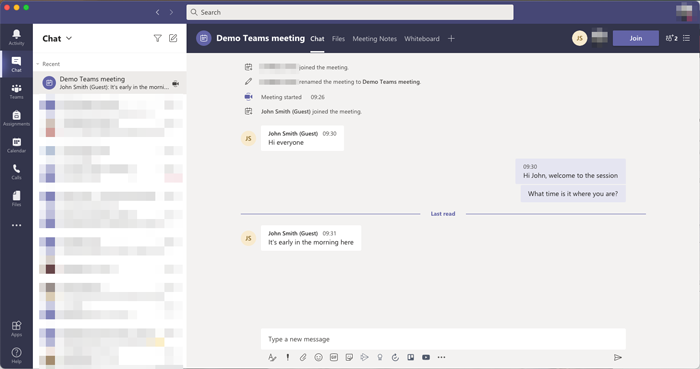
- For meetings viewed through the Teams client, it’s possible to view the text of a chat via the Chat tab at the left. Meeting attendees retain access to this after the meeting is finished.
Negatives
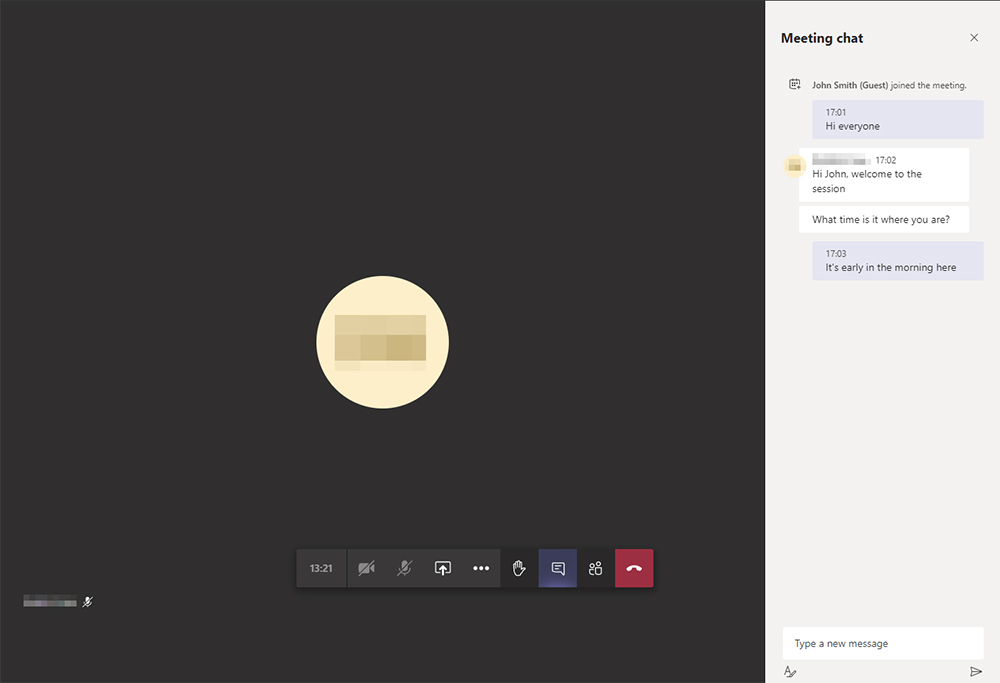
- For meetings viewed through a browser, text chat appears on the right-hand side of the screen.
- It’s not possible to download a transcript of the chat, and copy-pasting a large number of chat messages is difficult. However, people who attended the meeting retain access to the chat, providing that they did so using their Teams account.
How to join a meeting without a Teams account (Opens in new tab)