
This guide is for R(D)SVS staff with Instructor access to a Learn course.
Go to the Learn course that you want to send the announcement from.
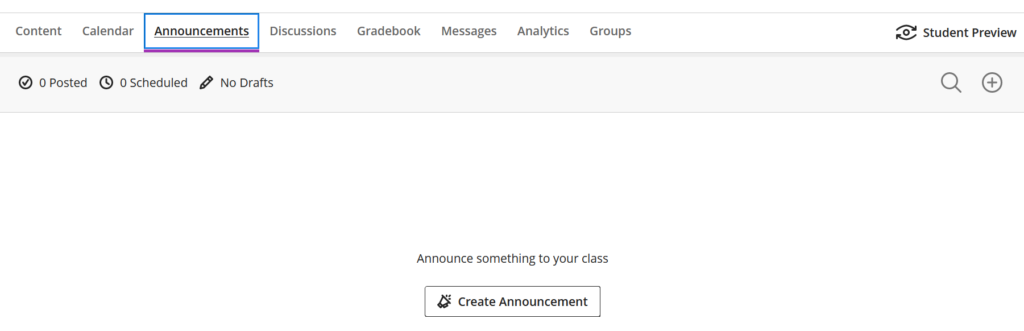
On the Course page, select the Announcements tab to open the Announcement page.
Press the plus icon + (top right) to create a new Announcement.
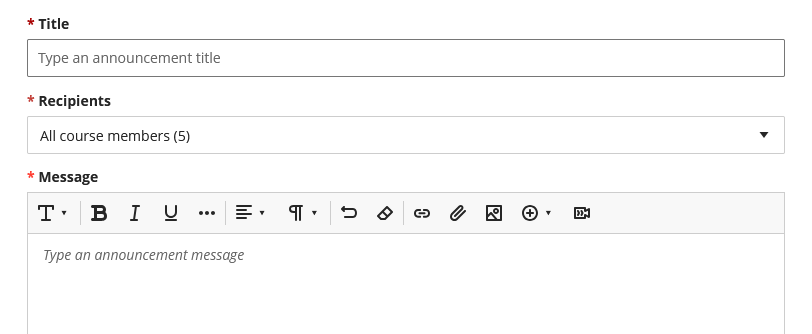
Add a Title and write the announcement Message. By default, the announcement Recipients will be all course members.
Announcements appear in the Learn Activity Stream and as a pop-up message when first opening the Course.
Emailing announcements
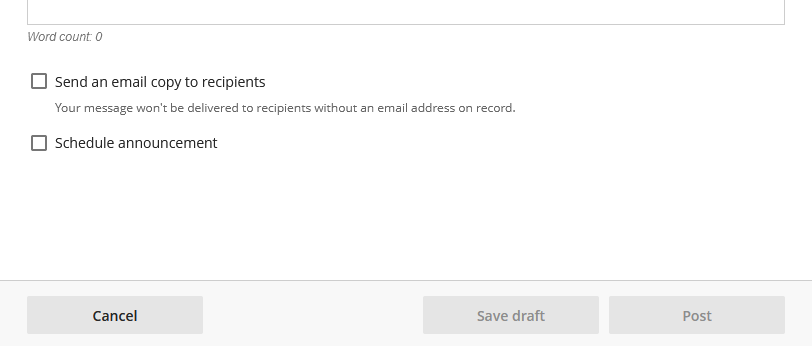
If you want the announcement to be emailed to students on the course, scroll down to the bottom of the page and tick the box ‘Send an email copy to recipients’.
Please note this email bypasses Learn global notification settings.
Schedule announcements
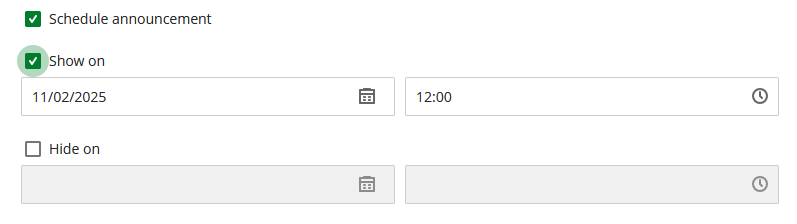
To send an announcement at a specific time and date, tick the box ‘Schedule announcement’. You can then set a show and hide time for the announcement.
Click Post to send an announcement.