
Make a PDF of your slides
It’s possible to upload a PowerPoint file into Collaborate, but it converts each slide into an image. This means that animation and videos in your PowerPoint presentation will not play after uploading to Collaborate. Other formatting issues may also occur.
For this reason, we recommend uploading a PDF version of your slides into Collaborate.
How to save PowerPoint presentations as PDF files (Opens in new tab)
If you do need to show videos during your Collaborate session, you either Share your Screen and play the PowerPoint presentation on your computer; or upload the videos to Media Hopper Create, and give students the links to the videos in the Collaborate Chat.
Roles
You will need to be in the session as a Moderator or a Presenter to upload slides.
How to upload your slides
Join the Collaborate session.
Click the pink tab at the bottom-right of your screen to open the Collaborate panel.

Click the Share Content icon and select Share Files.
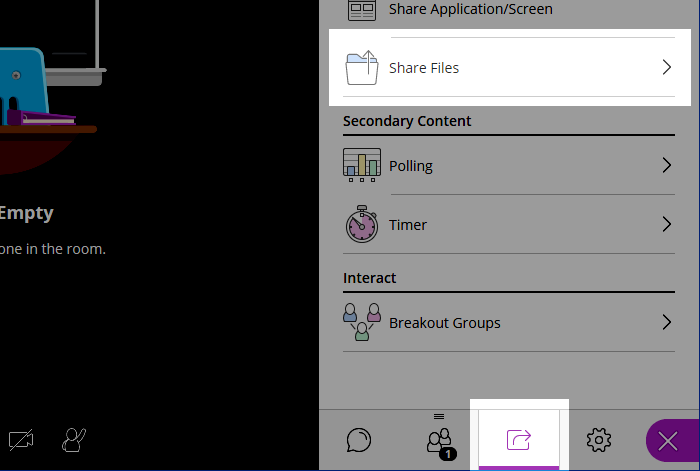
Drag your slides file to the Add Files area.

Select your presentation in the Files list, and click Share Now.
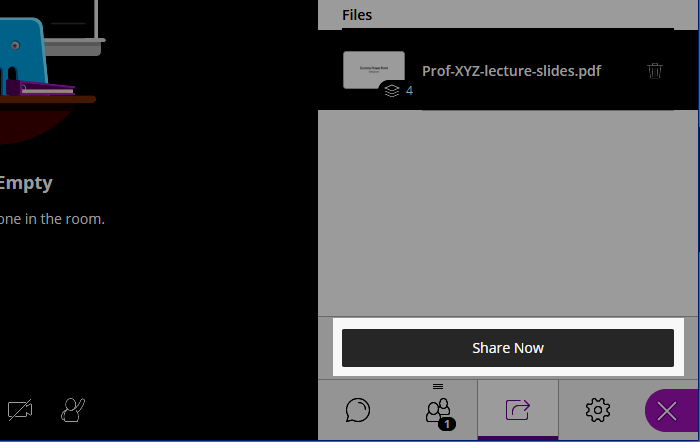
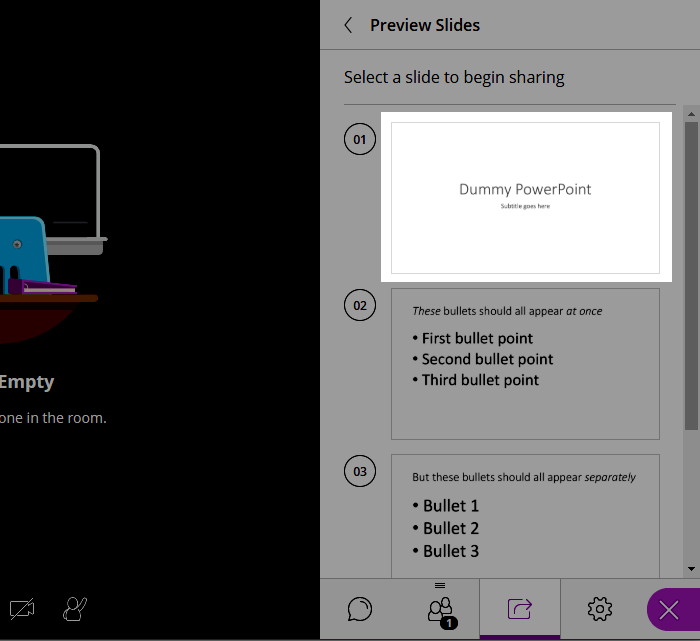
Select a slide from the list on the right to share that slide.
To stop sharing your slides, click the ‘Stop Sharing’ button at the top-right of the main display (the circle with square inside).

Use the arrows below the slide to change slides (or select from right-hand list)
