
When you add a ‘Media Hopper Replay’ tool link to a Learn page, you can make the link either:
- Open the whole list of lecture recordings associated with the Learn course (what MHR calls the ‘Class List’ or ‘Section Home’).
- Open an individual lecture recording (what MHR calls a ‘Classroom’)
These instructions will show you how you can link to an individual lecture recording (a ‘Classroom’).
- If you want to link to an entire ‘Class List’, the process is very similar.
Add the Media Hopper Replay tool to a Learn page
Navigate to the Learn page you want to add the link to (e.g. the page holding the lecture materials for the lecture you want to add the recording of).
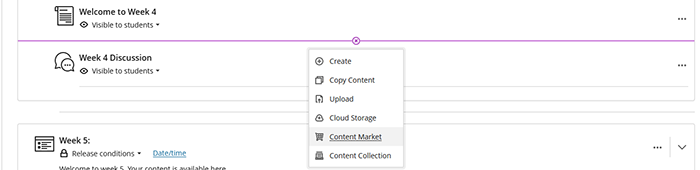
Hover your cursor where you wish to insert the recording. Click the magenta plus (+) button that appears and select Content Market.
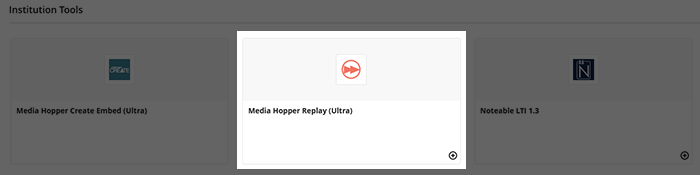
Select the Media Hopper Replay tool.
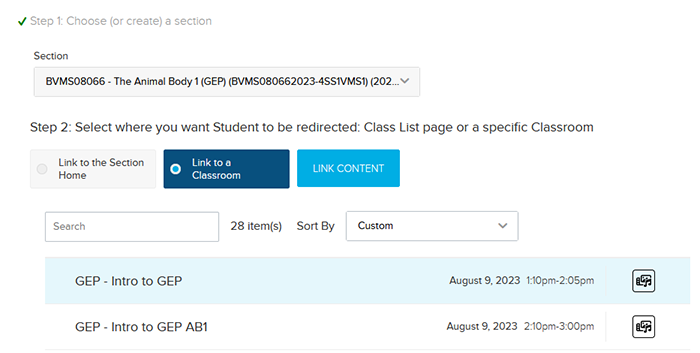
This will load a Link Content page. Follow the instructions on screen:
- Select the course to be linked – you can search by course code or name.
- Select Link to a Classroom (single lecture option).
- ‘Link to Section Home’ will create a Replay item that links to a list of all scheduled lectures for that course.
- Find the lecture you wish to add. It will highlight in blue when selected.
- Click Link Content.
Once added to the Learn course, you can edit the name and description of a Media Hopper Replay item via the ellipsis (…) menu.

Related articles
Re-use lectures from a previour year
To copy a Media Hopper Replay lecture recording over from a previous year, see “Re-using your lectures in Media Hopper Replay” on this page:
Using Media Hopper Create and Replay for Digital Teaching (Opens in new tab)