
This page continues on from Record a PowerPoint presentation with audio
Check the size of your file
Click File and select the Info option in the left hand side bar.

Look at the Properties section on the right for detailed information about your file.

If you’re submitting your file for an assignment, we recommend aiming for a file size of 20MB or less. Larger files can take a long time to upload, and things can go wrong if you experience network problems during the upload.
How to reduce the size of your file
There are two things you can do within PowerPoint to reduce the size of your file. Neither of them are guaranteed to work, but they are both worth trying.
1. Compress images
Click on an image in your presentation.
This will activate the Picture Tools / Format tab:

Click Compress Pictures.

Uncheck Apply only to this picture and select Email (96ppi) as the target output.

Click OK and save the file.
2. Compress media
If your presentation has audio or video embedded in it, you might be able to reduce the file size through the following steps.
Click File and select the Info option in the left hand side bar.
Choose Compress Media and select HD (720p). If your file is especially large, you might want to choose Standard (480p).
- In older versions the equivalent setting is Internet Quality.
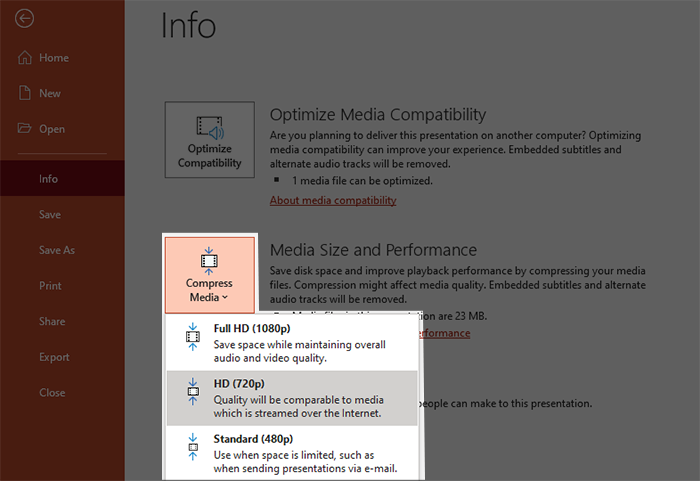
In new versions of PowerPoint you can also Optimize Compatibility which may help reduce issues when presenting on different machines.
Further help
If you require further assistance with reducing the size of a PowerPoint file, please contact the E-learning Developer for your course.